

Integrate OpenAI’s GPT models with Portkey’s AI Gateway
Portkey provides a robust and secure gateway to integrate OpenAI’s APIs into your applications, including GPT-4o, o1, DALL·E, Whisper, and more.With Portkey, take advantage of features like fast AI gateway access, observability, prompt management, and more, while securely managing API keys through Model Catalog.
All Models
Full support for GPT-4o, o1, GPT-4, GPT-3.5, and all OpenAI models
All Endpoints
Chat, completions, embeddings, audio, images, and more fully supported
Multi-SDK Support
Use with OpenAI SDK, Portkey SDK, or popular frameworks like LangChain
from portkey_ai import Portkey# 1. Install: pip install portkey-ai# 2. Add @openai provider in model catalog# 3. Use it:portkey = Portkey(api_key="PORTKEY_API_KEY")response = portkey.chat.completions.create( model="@openai/gpt-4o", messages=[{"role": "user", "content": "Say this is a test"}])print(response.choices[0].message.content)
import Portkey from 'portkey-ai'// 1. Install: npm install portkey-ai// 2. Add @openai provider in model catalog// 3. Use it:const portkey = new Portkey({ apiKey: "PORTKEY_API_KEY"})const response = await portkey.chat.completions.create({ model: "@openai/gpt-4o", messages: [{ role: "user", content: "Say this is a test" }]})console.log(response.choices[0].message.content)
from openai import OpenAIfrom portkey_ai import PORTKEY_GATEWAY_URL# 1. Install: pip install openai portkey-ai# 2. Add @openai provider in model catalog# 3. Use it:client = OpenAI( api_key="PORTKEY_API_KEY", # Portkey API key base_url=PORTKEY_GATEWAY_URL)response = client.chat.completions.create( model="@openai/gpt-4o", messages=[{"role": "user", "content": "Say this is a test"}])print(response.choices[0].message.content)
import OpenAI from "openai"import { PORTKEY_GATEWAY_URL } from "portkey-ai"// 1. Install: npm install openai portkey-ai// 2. Add @openai provider in model catalog// 3. Use it:const client = new OpenAI({ apiKey: "PORTKEY_API_KEY", // Portkey API key baseURL: PORTKEY_GATEWAY_URL})const response = await client.chat.completions.create({ model: "@openai/gpt-4o", messages: [{ role: "user", content: "Say this is a test" }]})console.log(response.choices[0].message.content)
# 1. Add @openai provider in model catalog# 2. Use it:curl https://api.portkey.ai/v1/chat/completions \ -H "Content-Type: application/json" \ -H "x-portkey-api-key: $PORTKEY_API_KEY" \ -H "x-portkey-provider: @openai" \ -d '{ "model": "gpt-4o", "messages": [ { "role": "user", "content": "Say this is a test" } ] }'
Tip: You can also set provider="@openai" in Portkey() and use just model="gpt-4o" in the request.Legacy support: The virtual_key parameter still works for backwards compatibility.
Stream responses for real-time output in your applications:
response = portkey.chat.completions.create( model="@openai/gpt-4o", messages=[{"role": "user", "content": "Tell me a story"}], stream=True)for chunk in response: if chunk.choices[0].delta.content: print(chunk.choices[0].delta.content, end="", flush=True)
const response = await portkey.chat.completions.create({ model: "@openai/gpt-4o", messages: [{ role: "user", content: "Tell me a story" }], stream: true})for await (const chunk of response) { if (chunk.choices[0]?.delta?.content) { process.stdout.write(chunk.choices[0].delta.content) }}
OpenAI’s Responses API combines the best of both Chat Completions and Assistants APIs. Portkey fully supports this API with both the Portkey SDK and OpenAI SDK.
from portkey_ai import Portkeyportkey = Portkey(api_key="PORTKEY_API_KEY")response = portkey.responses.create( model="@openai/gpt-4.1", input="Tell me a three sentence bedtime story about a unicorn.")print(response)
import Portkey from 'portkey-ai'const portkey = new Portkey({ apiKey: "PORTKEY_API_KEY"})const response = await portkey.responses.create({ model: "@openai/gpt-4.1", input: "Tell me a three sentence bedtime story about a unicorn."})console.log(response)
from openai import OpenAIfrom portkey_ai import PORTKEY_GATEWAY_URLclient = OpenAI( api_key="PORTKEY_API_KEY", base_url=PORTKEY_GATEWAY_URL)response = client.responses.create( model="@openai/gpt-4.1", input="Tell me a three sentence bedtime story about a unicorn.")print(response)
import OpenAI from 'openai'import { PORTKEY_GATEWAY_URL } from 'portkey-ai'const openai = new OpenAI({ apiKey: "PORTKEY_API_KEY", baseURL: PORTKEY_GATEWAY_URL})const response = await openai.responses.create({ model: "@openai/gpt-4.1", input: "Tell me a three sentence bedtime story about a unicorn."})console.log(response)
The Responses API provides a more flexible foundation for building agentic applications with built-in tools that execute automatically.
Remote MCP support on Responses API
Portkey supports Remote MCP support by OpenAI on its Responses API. Learn More
response = portkey.responses.create( model="@openai/gpt-4.1", instructions="You are a helpful assistant.", input="Hello!", stream=True)for event in response: print(event)
const response = await portkey.responses.create({ model: "@openai/gpt-4.1", instructions: "You are a helpful assistant.", input: "Hello!", stream: true})for await (const event of response) { console.log(event)}
response = client.responses.create( model="gpt-4.1", instructions="You are a helpful assistant.", input="Hello!", stream=True)for event in response: print(event)
const response = await openai.responses.create({ model: "gpt-4.1", instructions: "You are a helpful assistant.", input: "Hello!", stream: true})for await (const event of response) { console.log(event)}
Portkey supports OpenAI’s Realtime API with a seamless integration. This allows you to use Portkey’s logging, cost tracking, and guardrail features while using the Realtime API.
Function calls within your OpenAI or Portkey SDK operations remain standard. These logs will appear in Portkey, highlighting the utilized functions and their outputs.Additionally, you can define functions within your prompts and invoke the portkey.prompts.completions.create method as above.
The Responses API also supports function calling with the same powerful capabilities:
tools = [ { "type": "function", "name": "get_current_weather", "description": "Get the current weather in a given location", "parameters": { "type": "object", "properties": { "location": { "type": "string", "description": "The city and state, e.g. San Francisco, CA" }, "unit": {"type": "string", "enum": ["celsius", "fahrenheit"]} }, "required": ["location", "unit"] } }]response = portkey.responses.create( model="@openai/gpt-4.1", tools=tools, input="What is the weather like in Boston today?", tool_choice="auto")print(response)
const tools = [ { type: "function", name: "get_current_weather", description: "Get the current weather in a given location", parameters: { type: "object", properties: { location: { type: "string", description: "The city and state, e.g. San Francisco, CA" }, unit: { type: "string", enum: ["celsius", "fahrenheit"] } }, required: ["location", "unit"] } }]const response = await portkey.responses.create({ model: "@openai/gpt-4.1", tools: tools, input: "What is the weather like in Boston today?", tool_choice: "auto"})console.log(response)
tools = [ { "type": "function", "name": "get_current_weather", "description": "Get the current weather in a given location", "parameters": { "type": "object", "properties": { "location": { "type": "string", "description": "The city and state, e.g. San Francisco, CA" }, "unit": {"type": "string", "enum": ["celsius", "fahrenheit"]} }, "required": ["location", "unit"] } }]response = client.responses.create( model="gpt-4.1", tools=tools, input="What is the weather like in Boston today?", tool_choice="auto")print(response)
const tools = [ { type: "function", name: "get_current_weather", description: "Get the current weather in a given location", parameters: { type: "object", properties: { location: { type: "string", description: "The city and state, e.g. San Francisco, CA" }, unit: { type: "string", enum: ["celsius", "fahrenheit"] } }, required: ["location", "unit"] } }]const response = await openai.responses.create({ model: "gpt-4.1", tools: tools, input: "What is the weather like in Boston today?", tool_choice: "auto"})console.log(response)
Portkey supports multiple modalities for OpenAI. Make image generation requests through Portkey’s AI Gateway the same way as making completion calls.
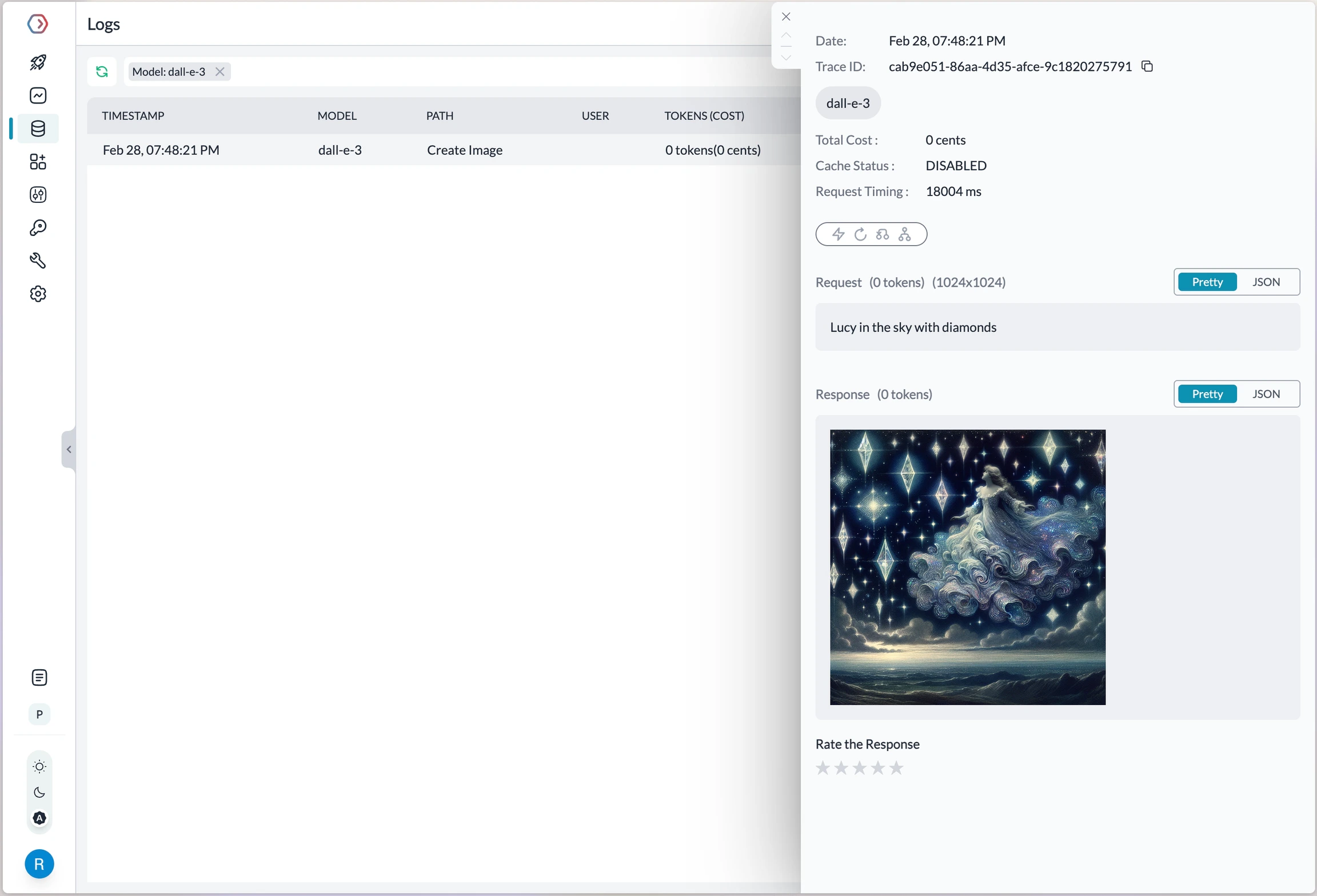
// Define the OpenAI client as shown aboveconst image = await openai.images.generate({ model:"dall-e-3", prompt:"Lucy in the sky with diamonds", size:"1024x1024"})
# Define the OpenAI client as shown aboveimage = openai.images.generate( model="dall-e-3", prompt="Lucy in the sky with diamonds", size="1024x1024")
Portkey’s fast AI gateway captures the information about the request on your Portkey Dashboard. On your logs screen, you’d be able to see this request with the request and response.
More information on image generation is available in the API Reference.
Portkey supports OpenAI’s Sora video generation models through the AI Gateway. Generate videos using the Portkey Python SDK:
from portkey_ai import Portkeyclient = Portkey( api_key="PORTKEY_API_KEY")video = client.videos.create( model="@openai/sora-2", prompt="A video of a cool cat on a motorcycle in the night",)print("Video generation started:", video)
Pricing for video generation requests will be visible on your Portkey dashboard, allowing you to track costs alongside your other API usage.
Audio - Transcription, Translation, and Text-to-Speech
Portkey’s multimodal Gateway also supports the audio methods on OpenAI API. Check out the below guides for more info:Check out the below guides for more info:
File search enables quick retrieval from your knowledge base across multiple file types:
response = portkey.responses.create( model="@openai/gpt-4.1", tools=[{ "type": "file_search", "vector_store_ids": ["vs_1234567890"], "max_num_results": 20, "filters": { # Optional - filter by metadata "type": "eq", "key": "document_type", "value": "report" } }], input="What are the attributes of an ancient brown dragon?")print(response)
const response = await portkey.responses.create({ model: "@openai/gpt-4.1", tools: [{ type: "file_search", vector_store_ids: ["vs_1234567890"], max_num_results: 20, filters: { // Optional - filter by metadata type: "eq", key: "document_type", value: "report" } }], input: "What are the attributes of an ancient brown dragon?"})console.log(response)
This tool requires you to first create a vector store and upload files to it. Supports various file formats including PDFs, DOCXs, TXT, and more. Results include file citations in the response.
Portkey also supports the Computer Use Assistant (CUA) tool, which helps agents control computers or virtual machines through screenshots and actions. This feature is available for select developers as a research preview on premium tiers.
Managing OpenAI Projects & Organizations in Portkey
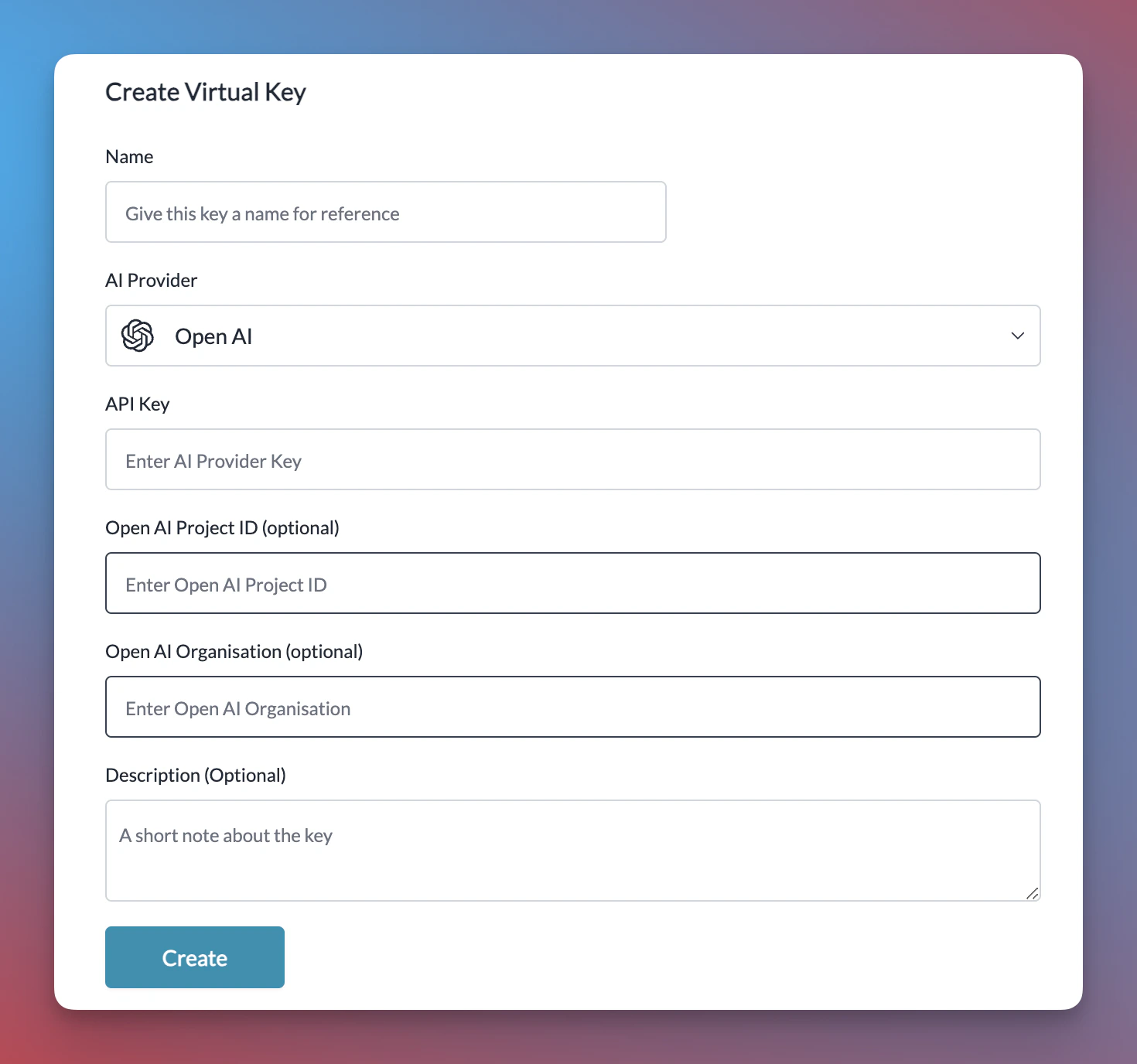
When integrating OpenAI with Portkey, specify your OpenAI organization and project IDs along with your API key. This is particularly useful if you belong to multiple organizations or are accessing projects through a legacy user API key.Specifying the organization and project IDs helps you maintain better control over your access rules, usage, and costs.Add your Org & Project details using:
When adding OpenAI from the Model Catalog, Portkey automatically displays optional fields for the organization ID and project ID alongside the API key field.Get your OpenAI API key from here, then add it to Portkey along with your org/project details.
Portkey takes budget management a step further than OpenAI. While OpenAI allows setting budget limits per project, Portkey enables you to set budget limits for each provider you create. For more information on budget limits, refer to this documentation: